
How to Create an account
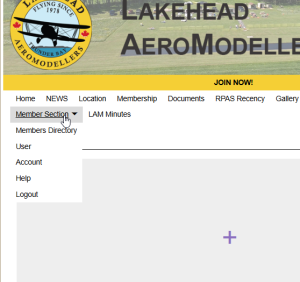
At the top left corner, you can find the new “Member Section” dropdown menu. When you are logged out, you will only see 2 options, Login, Register and Help.
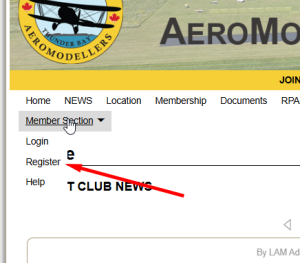
Click on Register and fill out the form. You can pick whatever username you like, but please use your actual first name and last name for proper identification from the website administrator. ONLY CLUB MEMBER WILL GET ACCESS TO THE MEMBER SECTION.
Your passwords requires a minimum of 8 characters up to 30 maximum.
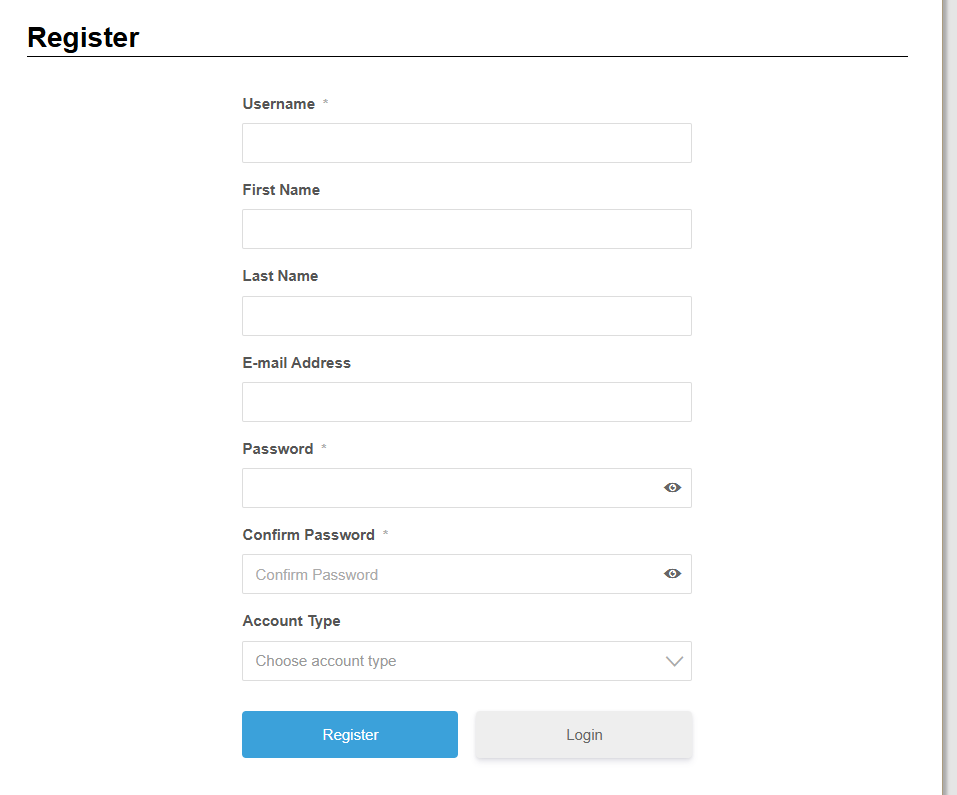
Once registered, your account will need to be approved by the administrator.
.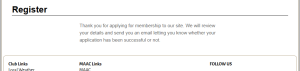
You will receive an email of confirmation following the approval. Look for an email from EasyWP.

The Member Section menu has new option available only when you are logged in.
How to personalize your profile
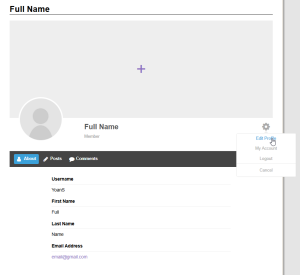
Once you are logged in, you will be automatically directed to the User page (also available via “user” in the dropdown menu). You can edit your profile by clicking on the gear icone on the right side.
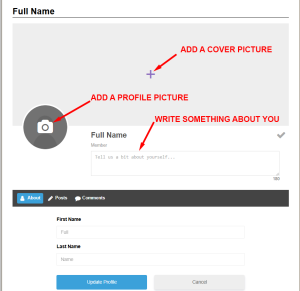
Feel free to add a profile and cover picture as well as something about you.
How to change your password
If you need to change your password, click on “Account” in the dropdown menu, then on “change password”. You will need to used your current password to create a new one.
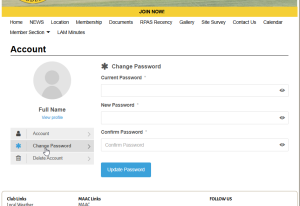
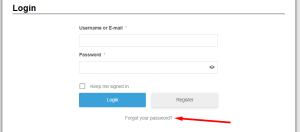
If you forgot your password, please send an email to the club to reset it or you can just click on “Forgot your password?” on the login page
How to change your email address
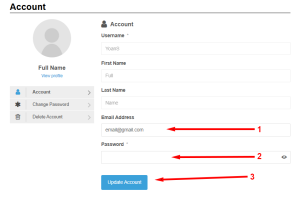
You can change you email address via your Account page. Just replace the existing email by the new one. You will need to type your password to validate your changes.